 SatoDri
9dc936ef33
SatoDri
9dc936ef33
Security: the checkout controller built the BTCPay invoice from the POSTed
redirect-form data (price, currency, orderId), and the IPN never checked
the settled amount against the transaction. A buyer could therefore submit
an arbitrary price and confirm an order after paying far less. The invoice
is now built server-side from the transaction, the redirect form only
carries the reference, and the settled amount and currency returned by
BTCPay are verified before the transaction is set done.

Other fixes in the notification path:
- Fix the IPN notification URL: it was concatenated without a leading
  slash (base_url + "payment/btcpay/ipn"), producing an unreachable host
  so notifications never arrived. It is now built with urls.url_join.
- Handle the "expired" invoice status (cancel the transaction) instead of
  leaving it pending forever, and set an error on unknown statuses.
- Let the payment framework confirm the order and send the confirmation
  email via its post-processing, instead of calling
  _check_amount_and_confirm_order() and _send_order_confirmation_mail()
  manually, which sent the confirmation email twice.
- Fix a crsf=False typo (was disabling nothing) to csrf=False on the
  return route, and drop the redundant _handle_notification_data override
  that duplicated the core method.
- Guard against a missing reference instead of calling all() on it.
BTCPay Server payment gateway for Odoo 18
This is the module to connect Odoo 18 and BTCPay Server
This module allows you to accept bitcoin (and other cryptocurrency) payments in your Odoo e-commerce store.
:::tip If you use Odoo 16 you can find the documentation here and for Odoo 17 here. :::
Install the module
- Clone our repository or download the .zip from the releases page
- Make sure you are on branch
18.0or downloaded a release tagged with version v18.x - Place the
payment_btcpayserverdirectory in your Odoo addons directory - Install dependencies by running
pip install -r requirements.txt(from inside thepayment_btcpayserverdirectory) - Restart Odoo
- Go to Apps -> Update Apps List
- Remove the "Apps" filter and search for "btcpay"
- Click Activate button
Configure BTCPay as payment provider
- Go to Website -> Configuration -> Payment Providers
- Search for BTCPay and click on button Activate
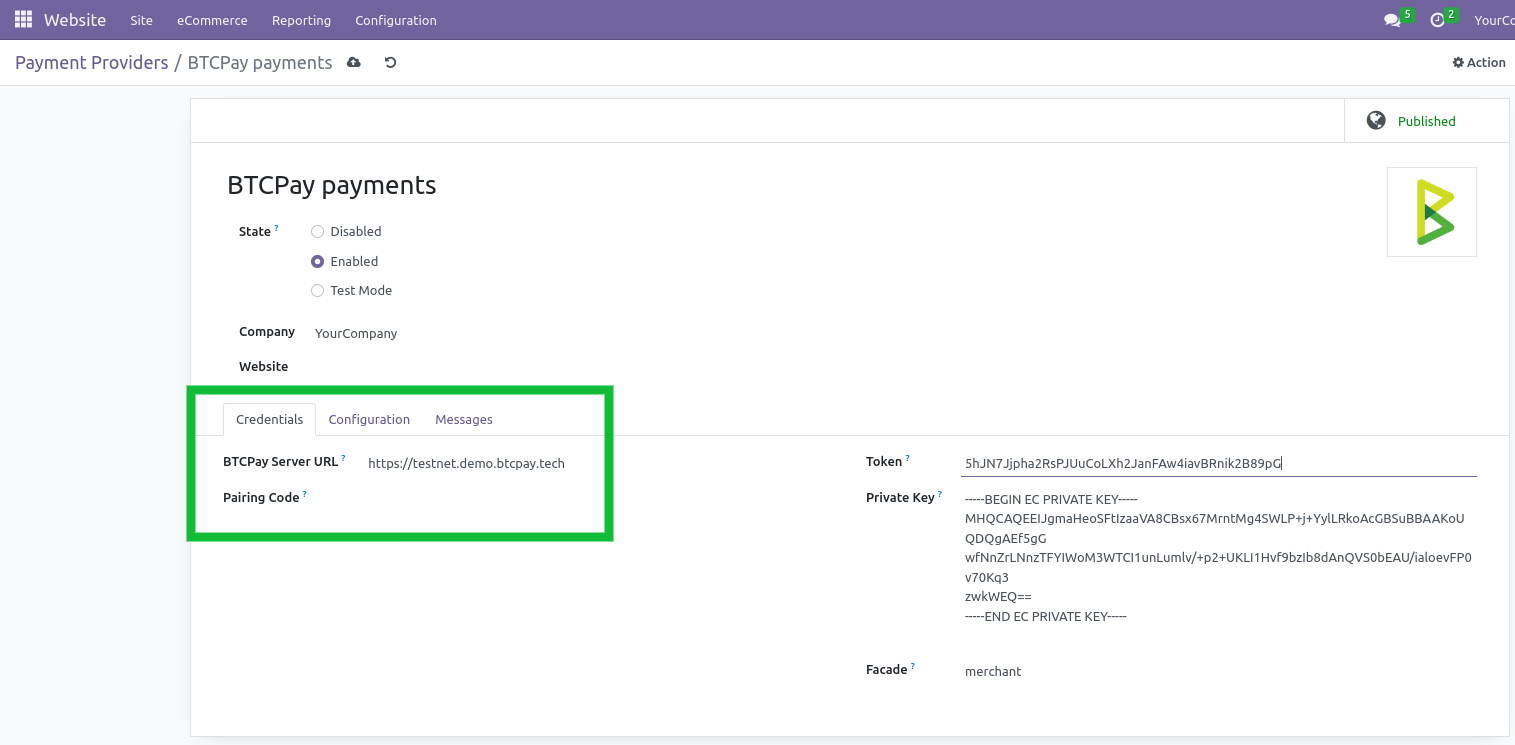
In the BTCPay settings form, tab "Credentials":
- Set field "State" to enabled
- Set field "BTCPay Server URL" as test or live URL including https://. Example URL: https://testnet.demo.btcpayserver.org
- Get a pairing code from your BTCPay Server store: Settings -> Access Tokens
- Click on "Create Token" button
- Label: enter e.g. "My odoo store"
- Public Key: leave empty
- Click on "Request Pairing" button, on next page click "Approve" button
- At the top copy the code next to "Server initiated pairing code", e.g. "hg7z8wN"
- Back in Odoo, paste the code into "Pairing Code" field
- Hit Tab key on your keyboard (or click on another field) and the pairing process will start automatically
- When the pairing is successful the "Token" and "Private Key" field will be filled automatically
- Field Facade, keep default 'merchant'.
On the tab "Configuration":
- Make sure field "Payment Journal" is set to "Bank", otherwise you can click the dropdown and click on the suggestion "Bank"
- Now you can save the settings
Check the payment method is enabled:
- Go to Website -> Configuration -> Payment Methods
- Make sure "Pay with Bitcoin / Lightning Network" is active
Congrats, all done. Do some testing to be sure all works.
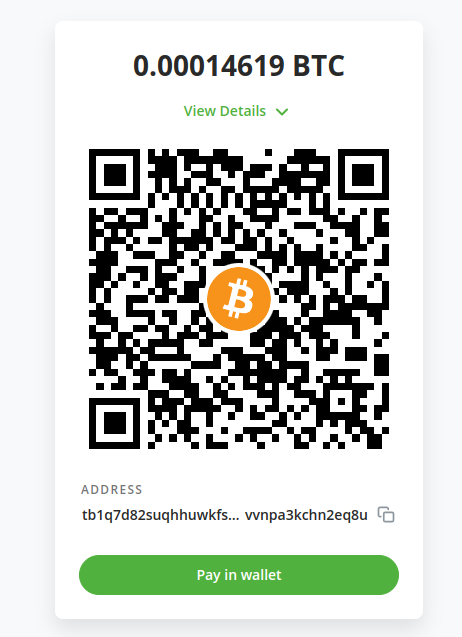
How does the payment page look?
During the checkout the customers will have the option to select the payment method "Pay with Bitcoin / Lightning Network". After selecting they will be redirected to the BTCPay checkout page as shown below.
Transaction BTCPay Details
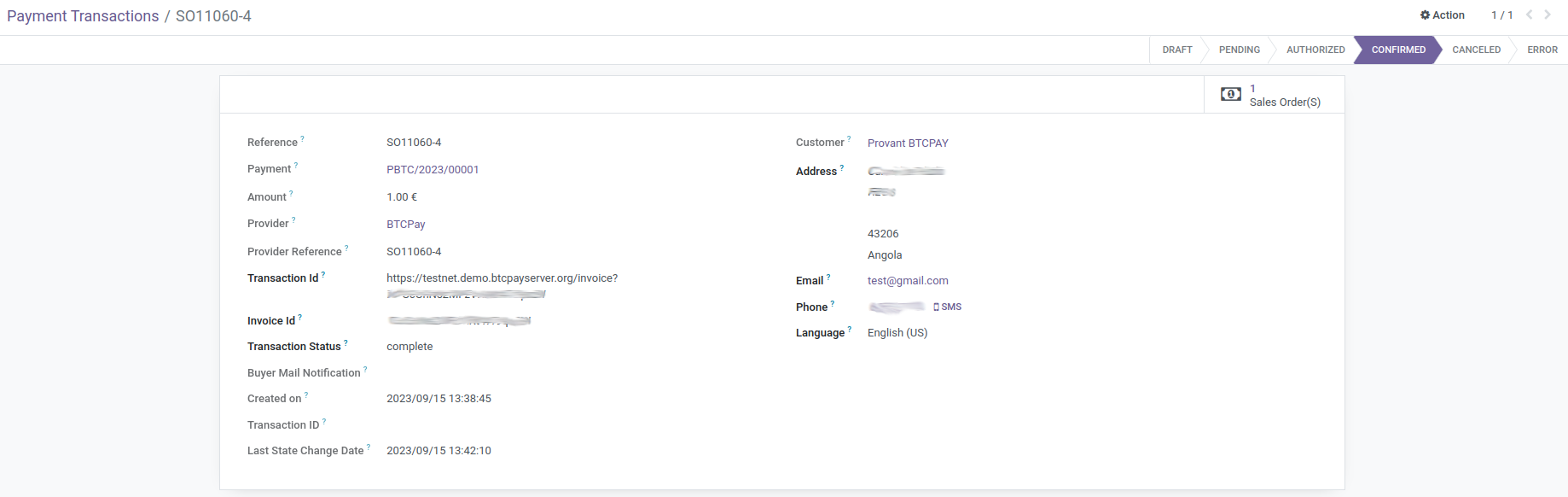
In transaction object, you will find more technical information about this method of payment:
- Transaction Id: cryptocurrency transaction hash for the executed payout
- Invoice Id: the id of the invoice for which you want to fetch an event token
- Transaction Status: That indicates state of transaction
Troubleshooting
The order and transaction status does not get updated to "paid"
If the BTCPay connection generally works, like redirect to BTCPay checkout page (QR-code) then check your odoo logs and make sure PDF generation generally works. If there are errors mentioning wkhtmltopdf then you need to install wkhtmltopdf on your server.