BTCPay Server Gateway

This is the module to connect Odoo 17.0 and BTCPay Server

This module allow you to create an easily way to accept Bitcoins

Install the module

  • Clone our [repository](https://github.com/btcpayserver/odoo) or download the .zip from the [releases page](https://github.com/btcpayserver/odoo/releases)
  • Make sure you are on branch `17.0` or downloaded a release tagged with version v17.x
  • Place the `payment_btcpayserver` directory in your Odoo addons directory
  • Install dependencies by running `pip install -r requirements.txt` (from inside the `payment_btcpayserver` directory)
  • Restart Odoo
  • Go to Apps -> Update Apps List
  • Remove the "Apps" filter and search for "btcpay"
  • Click **Activate** button

Configure BTCPay as payment provider

  • Go to Website -> Configuration -> Payment Providers
  • Search for BTCPay and click on button Activate

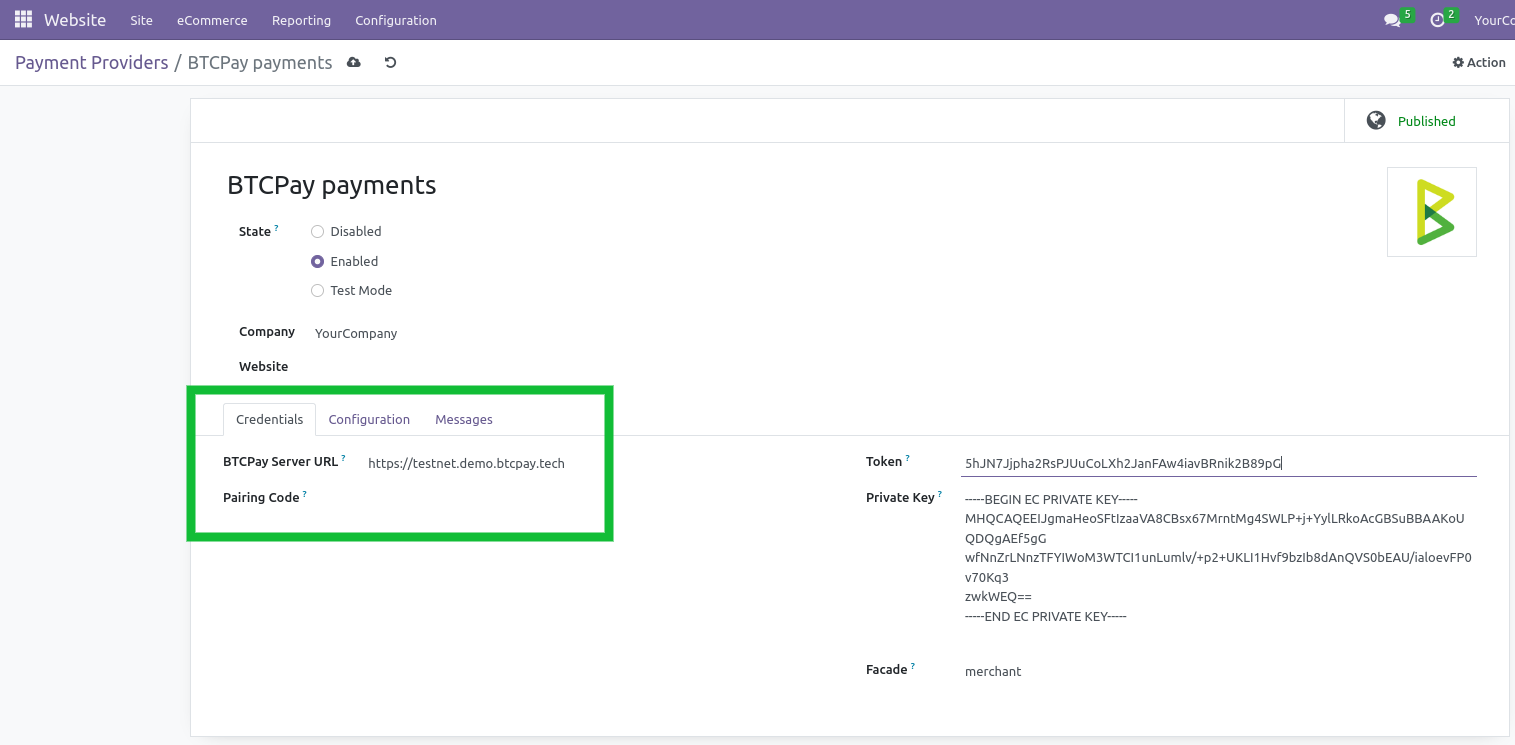
In the BTCPay settings form, tab "Credentials":

  • Set field "State" to enabled
  • Set field "BTCPay Server URL" as test or live URL including https://. Example URL: https://testnet.demo.btcpayserver.org
  • Get a pairing code from your BTCPay Server store: Settings -> Access Tokens
    • Click on "Create Token" button
    • Label: enter e.g. "My odoo store"
    • Public Key: leave empty
    • Click on "Request Pairing" button, on next page click "Approve" button
    • At the top copy the code next to "Server initiated pairing code", e.g. "hg7z8wN"
  • Back in Odoo, paste the code into "Pairing Code" field
  • Hit Tab key on your keyboard (or click on another field) and the pairing process will start automatically
  • When the pairing is successful the "Token" and "Private Key" field will be filled automatically
  • Field Facade, keep default 'merchant'.

On the tab "Configuration":

  • Make sure field "Payment Journal" is set to "Bank", otherwise you can click the dropdown and click on the suggestion "Bank"
  • Now you can save the settings

Check the payment method is enabled:

  • Go to Website -> Configuration -> Payment Methods
  • Make sure "Pay with Bitcoin / Lightning Network" is active

Congrats, all done. Do some testing to be sure all works.
How it looks like?

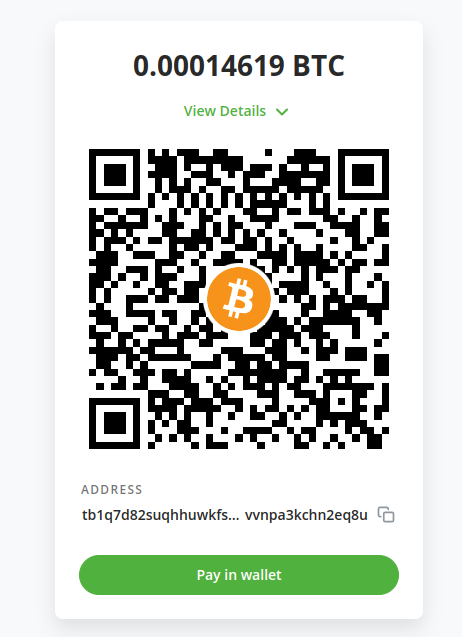
    In payment webpage where payment methods appear, you will find new payment method called BTCPay. If you click on it you will be redirect to the server that you indicate in location field.

Transaction BTCPay Details

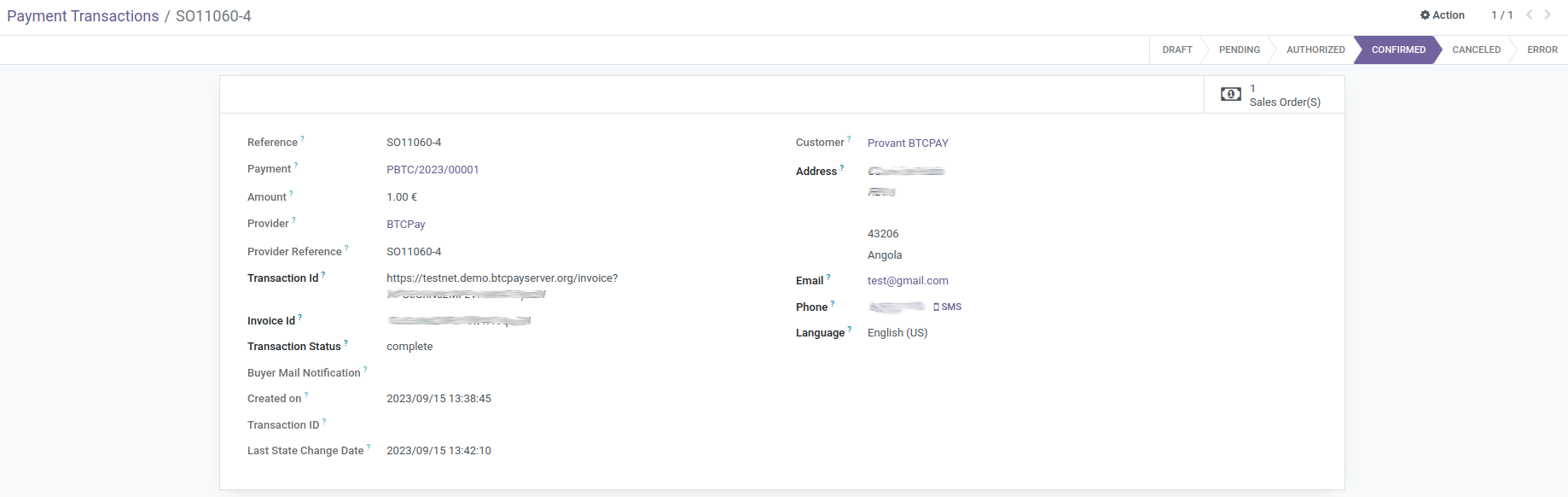
    In transaction object, you will find more technical information about this method of payment:
  • Transaction Id: cryptocurrency transaction hash for the executed payout.
  • Invoice Id: the id of the invoice for which you want to fetch an event token
  • Transaction Status: That indicates state of transaction